
EzCreate · AI image tools
AI Image Extender
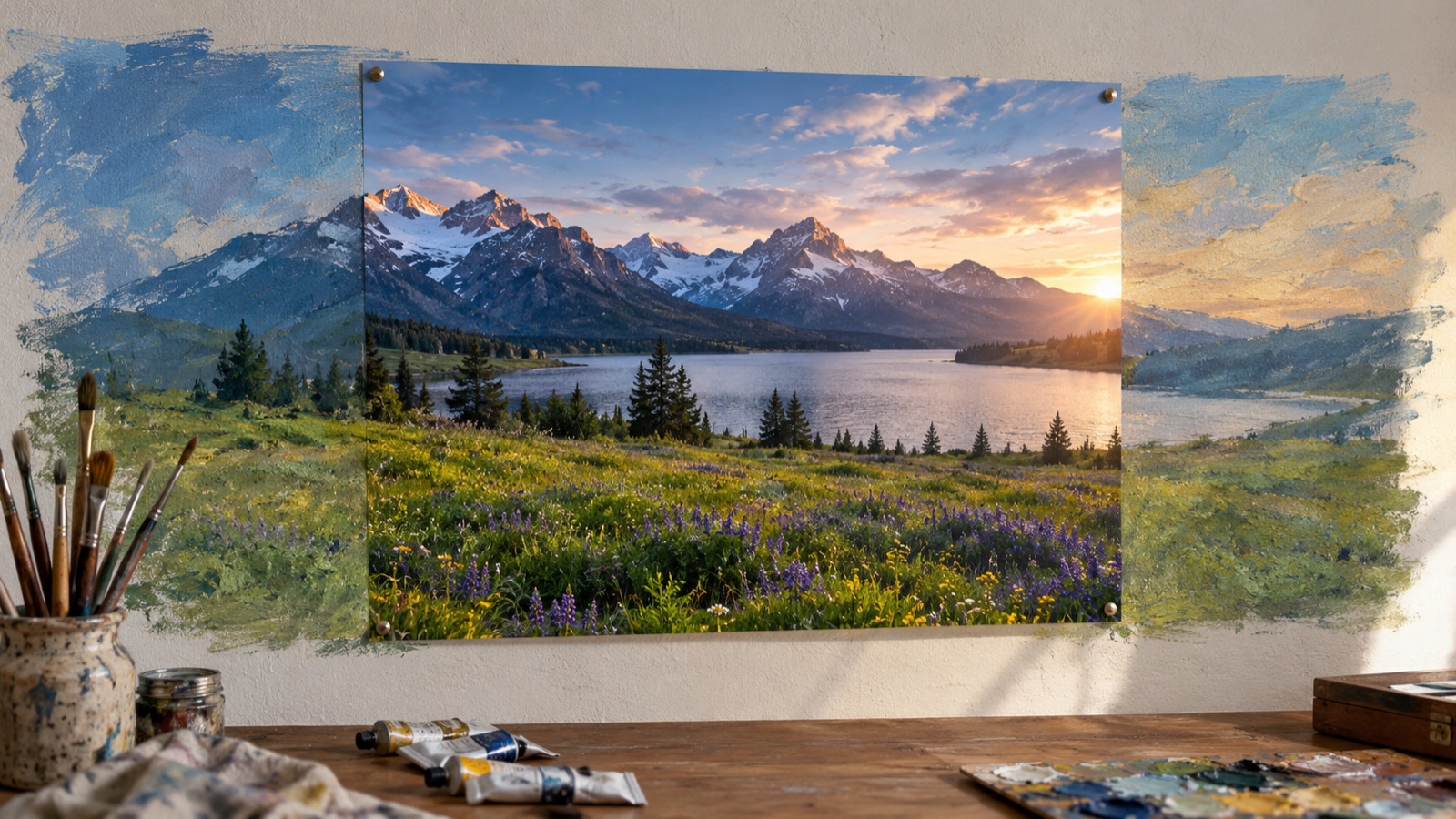
A photo that is perfect except for the crop is a common problem: a group shot that cuts off a shoulder, a product photo that is too tight for a banner, a landscape that needs a wider social format. An image extender, also called outpainting, generates new pixels around the existing frame so the composition can breathe.
- Outpainting adds new pixels around the frame; it does not add real detail that was never photographed. Expect plausible continuation, not truth.
- Protect the center explicitly and choose the target aspect ratio before generating.
- Faces and text near the edge are the most likely to distort. Keep important subjects away from the crop line.
You can open the editor for free and start with a photo or a prompt. Sign in to claim the daily preview credits; downloads and higher resolution use purchased credits.
Quick answer
The model continues the scene from the edges. It can extend a sky, a wall or a field convincingly, and it can also invent a building, a person or a texture that was never there. The prompt below protects the original center and asks for a natural continuation. Check the new area at full size, and keep the unextended original as the source of record.
What this tool does
Adds room around the frame
Creates new pixels outside the original edges so a tight photo can fit a wider banner or social crop.
Continues the scene
Matches perspective, lighting and texture so the extension blends into the original photograph.
Protects the original
A good prompt keeps the center unchanged and prevents the model from stretching or duplicating the subject.
How to use the AI Image Extender
1. Choose the final format
Decide whether you need 16:9, 4:5, 1:1 or a print size. The target shape determines how much new area the model must invent.
2. Protect the subject
Keep faces, text and key products away from the edge. Ask the model to continue the background, not to add new people or objects.
3. Inspect the seam
Look for a visible line where the original ends, repeated textures and warped straight edges. Regenerate if the seam is obvious.
Prompt recipe
This is the preset behind the example. Apply it to the editor below, or copy it into your own model. Change one detail at a time so you can tell what helped.
Extend this photograph beyond its current edges. Continue the existing scene, perspective, lighting and textures naturally into a wider 16:9 composition. Keep the original center unchanged. Do not stretch, duplicate or blur the original. Do not add new people, text or watermarks.Try it in the real editor
Upload a photo, apply the preset and press Generate. The editor shows the current credit cost before anything runs. Results vary by source photo and model; check the face, hands and fine edges before you use the output.
What it does well, and where it stops
- It cannot recover detail that was never photographed; it invents plausible pixels.
- Large extensions give the model more room to add objects or change the scene.
- Faces and text near the edge often distort. Do not use outpainting to reconstruct a missing person.
Who it is for
Social crops
Turn a tight portrait into a 16:9 banner without stretching the face.
Print and poster layouts
Add breathing room around a landscape for a larger frame or a poster.
Product banners
Extend a clean studio background to fit a wide hero image while keeping the product unchanged.
Frequently asked questions
- How much can I extend an image?
- It depends on the model and the source. Small extensions of sky, walls or ground are usually convincing. Large extensions give the model more room to invent objects, so check the result carefully.
- Can I change the aspect ratio?
- Yes. Choose the target ratio in the editor or describe it in the prompt. The original center should remain unchanged while new pixels are added around it.
- Does it stretch the original photo?
- It should not. The prompt explicitly forbids stretching, duplicating or blurring the original. If the subject looks wider or softer, regenerate.
- Can it add a person who was cut out of the frame?
- It can generate a plausible figure, but it will not be the real person. Do not use outpainting to reconstruct a missing person for a factual or family record.
- Is it free to try?
- You can open the editor and upload a photo for free. Sign in to claim the daily preview credits; downloads and higher resolution use purchased credits.
Try the editor before you buy credits
Upload one photo and run the preset in the editor above. Sign in to claim the daily preview credits; larger runs, downloads, 2K or 4K output and saved history use purchased credits.
Related tools and guides
Change Photo Background
Replace a busy background with a studio, street or solid-color scene.
Remove an Object From a Photo
Erase a distraction and rebuild the background with matching texture.
Old Photo Restorer
Repair scratches, fading and small tears in a scanned family photograph.
How AI outpainting extends a photo without stretching it
Read the full guide, then come back to the same editor.
All AI image tools
Compare every focused tool and choose the one that matches the job.