
EzCreate · AI image tools
Remove an Object From a Photo
Object removal is the photo edit people reach for first: a bin in the corner of a travel shot, a cable across a product photo, a stranger in the background. AI can reconstruct the area behind the object with surprising quality, especially when the background is a wall, sky, grass or pavement.
- Small objects against simple textures are the easy case. Large objects that overlap faces, text or complex patterns are the hard case.
- Always keep the original. Removal changes the factual record of the photo.
- Do not remove safety equipment, defects in a property listing or anything needed for evidence.
You can open the editor for free and start with a photo or a prompt. Sign in to claim the daily preview credits; downloads and higher resolution use purchased credits.
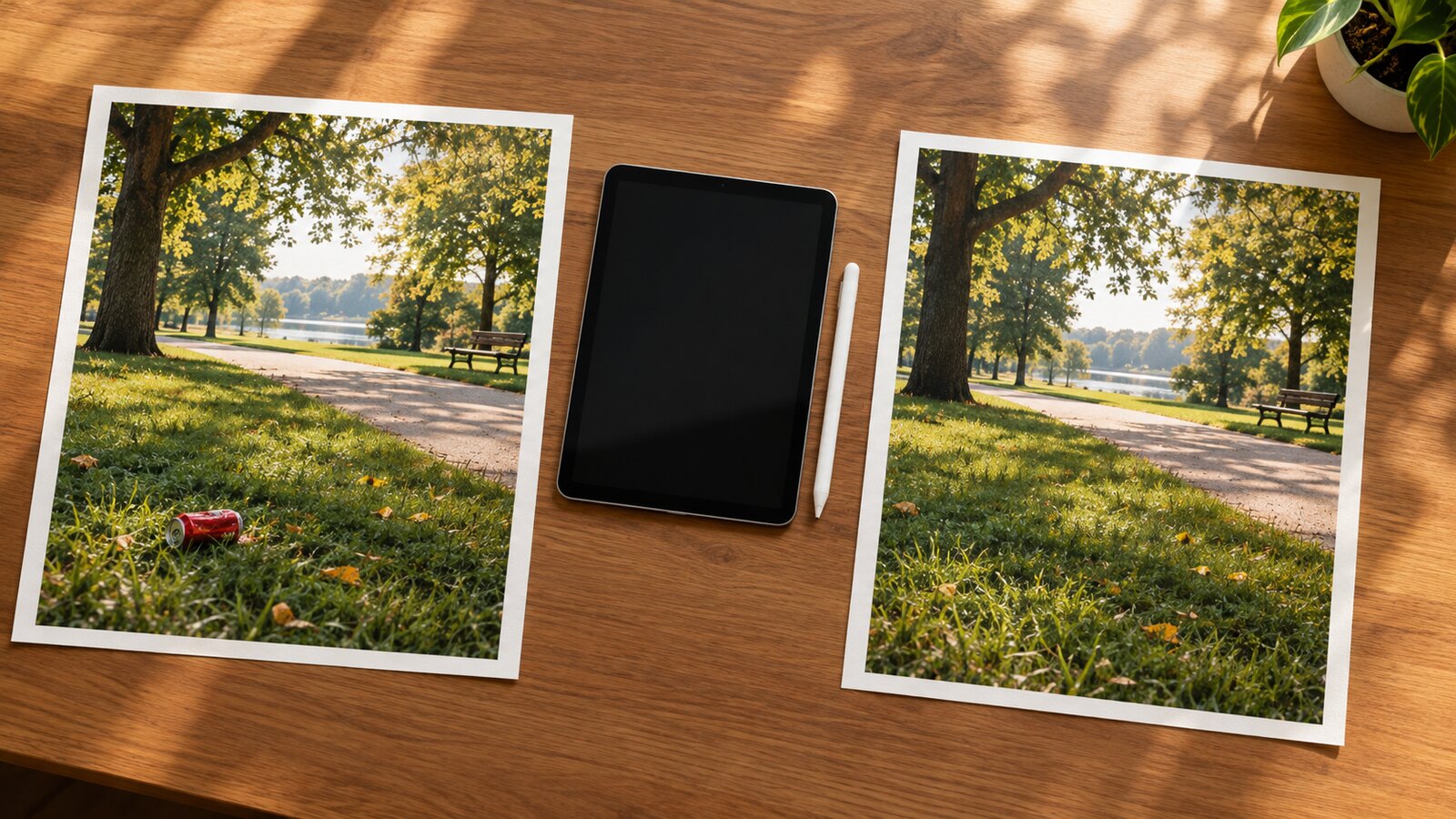
Quick answer
The hard cases are the ones where the object covers something important. If a person is standing in front of another person, the model has to invent the hidden body. If a sign is behind a pole, it has to invent the letters. The prompt below asks for a natural reconstruction and protects everything else in the frame. Check the repaired area at 100%, and keep the original file.
What this tool does
Cleans up distractions
Removes bins, cables, signs and other small objects, then rebuilds the background texture behind them.
Matches the surrounding scene
A good prompt carries the perspective, lighting and shadows into the repaired area.
Protects the rest of the frame
Everything outside the repair should stay unchanged, including people, text and important details.
How to use the Remove an Object From a Photo
1. Describe the object precisely
Name the object and its location. “The blue trash bin at the lower left” is easier to remove than “the thing in the corner”.
2. Choose a simple source
The repair is more convincing when the background is a repeated texture such as grass, sky, wall or pavement.
3. Inspect the repair
Look for repeated patterns, warped lines and smudged texture. If the object overlapped a person or text, expect to regenerate.
Prompt recipe
This is the preset behind the example. Apply it to the editor below, or copy it into your own model. Change one detail at a time so you can tell what helped.
Remove the distracting object from this photo. Reconstruct the background behind it with matching texture, perspective, lighting and shadows. Keep everything else in the photo unchanged. Do not add new objects, people, text or watermarks. Make the repair look natural at full resolution.Try it in the real editor
Upload a photo, apply the preset and press Generate. The editor shows the current credit cost before anything runs. Results vary by source photo and model; check the face, hands and fine edges before you use the output.
What it does well, and where it stops
- Large removals that uncover people, text or complex patterns often look invented.
- Shadows and reflections from the removed object may remain or be rebuilt incorrectly.
- Do not remove property defects, safety equipment or evidence. That can mislead viewers or break listing and legal rules.
Who it is for
Travel and street photos
Remove a bin, a cable or a passing stranger from an otherwise strong shot.
Product cleanup
Take a distracting label or object out of a simple studio background before a listing.
Personal photo repair
Clean up a family snapshot while keeping the people and the moment intact.
Frequently asked questions
- What objects can AI remove?
- Small, well-separated objects against simple textures work best: bins, cables, signs, small clutter. Large objects that cover people, text or complex patterns are much harder and often need a manual retouch.
- Does object removal leave a blur?
- It can. Look for smudged texture, repeated patterns and warped straight lines. A simpler background and a smaller removal area usually produce a cleaner result.
- Can I remove a person from a photo?
- You can, but if the person overlaps someone else the model must invent the hidden body. Use it for strangers in the background, not for rewriting a family record or removing someone for deceptive purposes.
- Is it ethical to remove objects from a photo?
- For personal, decorative edits, usually yes. For news, evidence, property listings or anything presented as factual, removal can mislead. Keep the original and disclose meaningful edits.
- Is it free to try?
- You can open the editor and upload a photo for free. Sign in to claim the daily preview credits; downloads and higher resolution use purchased credits.
Try the editor before you buy credits
Upload one photo and run the preset in the editor above. Sign in to claim the daily preview credits; larger runs, downloads, 2K or 4K output and saved history use purchased credits.
Related tools and guides
Change Photo Background
Replace a busy background with a studio, street or solid-color scene.
AI Image Extender
Add room around a tight photo for a banner, print or social crop.
Old Photo Restorer
Repair scratches, fading and small tears in a scanned family photograph.
When AI object removal works, and when it leaves a mess
Read the full guide, then come back to the same editor.
All AI image tools
Compare every focused tool and choose the one that matches the job.