
EzCreate · AI image tools
Old Photo Restorer
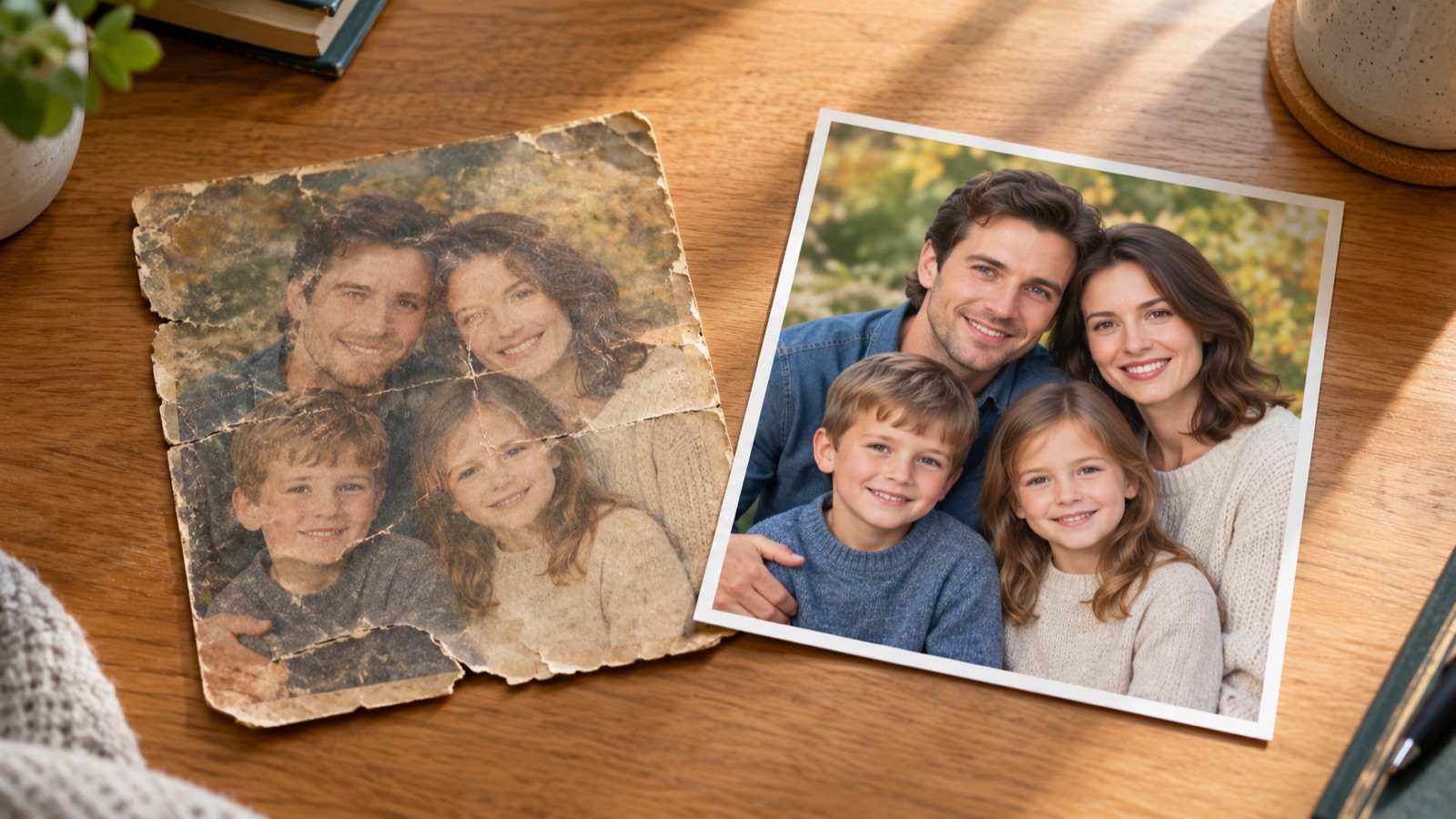
A family photograph usually has two kinds of damage: the damage you can see, such as a torn corner or a scratch across a face, and the damage you cannot, such as a scan that was already too small to hold the detail you want. AI restoration helps most with the first kind. It reads the surrounding pixels and rebuilds texture, tone and edges so the repair blends into the print.
- AI restoration is best at dust, scratches, fading, creases and moderate tearing. It cannot recover detail that was never in the scan.
- Scan at 600 dpi or higher, keep the original file, and compare the restored face with the source before printing.
- You can upload a photo and open the EzCreate editor for free. Sign in to claim the daily preview credits; larger runs, downloads and 2K or 4K output use purchased credits.
You can open the editor for free and start with a photo or a prompt. Sign in to claim the daily preview credits; downloads and higher resolution use purchased credits.
Quick answer
This page opens the real EzCreate image editor with a restoration prompt already written. Upload a scan or a phone photo of the print, run the preset, and compare the result at the size you plan to print. The editor is not a forensic tool and it will not bring back a face that is completely missing; it produces a plausible, natural-looking photograph, which is the right goal for a family album and the wrong goal for evidence.
What this tool does
Rebuilds damaged texture
The model fills small scratches, dust and creases using the surrounding paper and skin texture, so the repair does not look like a blurred patch.
Balances faded tone
It can lift a washed-out print, reduce color casts and recover contrast while keeping the photograph’s period look.
Keeps the original composition
A good restoration prompt explicitly protects the people, clothing, pose and crop. The model should repair, not reimagine.
How to use the Old Photo Restorer
1. Make a high-quality scan
Use a flatbed scanner at 600 dpi or photograph the print in even daylight without glare. Keep the untouched scan as your archive copy.
2. Run the restoration preset
Apply the prompt below, upload the scan, and generate a 1K preview. Check the face, hands and any text in the photo at 100% zoom.
3. Compare, then print small
Put the original and the result side by side. Print a small proof before paying for a large print, because restoration artifacts are easier to see on paper.
Prompt recipe
This is the preset behind the example. Apply it to the editor below, or copy it into your own model. Change one detail at a time so you can tell what helped.
Restore this scanned family photograph. Repair cracks, scratches, dust, fading and torn edges. Recover natural facial detail without changing the person’s identity, age or expression. Keep the original composition, clothing and background. Use warm, realistic color and soft photographic grain. Do not add people, text, borders or watermarks.Try it in the real editor
Upload a photo, apply the preset and press Generate. The editor shows the current credit cost before anything runs. Results vary by source photo and model; check the face, hands and fine edges before you use the output.
What it does well, and where it stops
- It cannot recover detail that is not in the scan. A 300-pixel face will not become a sharp portrait.
- Large missing areas are guessed. A face that is half missing may be rebuilt as a plausible stranger, so check likeness carefully.
- It is not suitable for legal, insurance, forensic or historical evidence where every mark must remain exact.
Who it is for
Family albums and reunions
Repair the one print everyone wants to see, then share a clean digital copy with relatives.
Memorial and tribute prints
Prepare a softer, cleaner portrait for a service or framed keepsake while keeping the person recognizable.
Genealogy projects
Make old portraits easier to study and compare, while keeping the unedited scan as the source of record.
Frequently asked questions
- Is the old photo restorer free?
- You can open the editor and upload a photo for free. Create an account to claim the daily preview credits; larger runs, downloads, 2K or 4K output and saved history use purchased credits.
- What kind of damage can AI repair?
- Dust, small scratches, creases, fading and moderate tears are good candidates. Large missing areas, severe water damage and faces that are almost gone are guesses rather than recovery.
- Will restoration change the person’s face?
- It can. The model may smooth skin, change the shape of an eye or invent detail in a dark area. Compare the result with the original and regenerate with a more conservative prompt if the likeness drifts.
- Can I colorize a black-and-white photo on the same page?
- Yes. Use the colorize preset on the colorize photo page, or add a sentence to this prompt asking for natural, period-appropriate color. Color is always an interpretation, not a recovered fact.
- What size can I print?
- The editor can output 1K, 2K or 4K on supported models. For print, start from the largest scan you have, restore at 2K or 4K, and check the result at the intended print size.
Sources
These links open the source’s own site. Rules and prices change; check the current official page before you rely on a detail.
Try the editor before you buy credits
Upload one photo and run the preset in the editor above. Sign in to claim the daily preview credits; larger runs, downloads, 2K or 4K output and saved history use purchased credits.
Related tools and guides
Colorize a Black and White Photo
Add natural, period-aware color to a black and white family photo.
Remove an Object From a Photo
Erase a distraction and rebuild the background with matching texture.
AI Image Extender
Add room around a tight photo for a banner, print or social crop.
How to restore old photos without losing the person
Read the full guide, then come back to the same editor.
All AI image tools
Compare every focused tool and choose the one that matches the job.