
EzCreate · AI image tools
AI Video Prompt Generator
Most bad image-to-video results come from a vague prompt. The model receives a still image and a sentence such as “make it move”, then invents everything else: the camera, the lighting, the background and sometimes a new face. A better prompt treats the shot like a tiny film brief.
- Video models need one clear shot, not a whole movie. Describe the subject, one action, the camera move and the lighting.
- Say what must stay the same: face, costume, background and composition. That reduces identity drift and scene cuts.
- EzCreate currently builds the prompt and the still keyframe; it does not publicly render video on this page.
You can open the editor for free and start with a photo or a prompt. Sign in to claim the daily preview credits; downloads and higher resolution use purchased credits.
Quick answer
This page gives you two things: a keyframe you can generate in the EzCreate image editor, and a structured prompt you can copy into a video model such as Seedance, Kling, Wan, Runway or another provider. EzCreate does not publicly render video on this page today. The prompt builder is free to use; the keyframe generation uses the same credits as any other image edit.
What this tool does
Builds a one-shot brief
Turns a vague idea into subject, action, camera, lighting, duration and consistency notes.
Creates the starting frame
Generates a still keyframe in the image editor so the video model has a clear composition to animate.
Stays model-neutral
The prompt works with image-to-video models that accept natural-language direction; adjust the syntax for your provider.
How to use the AI Video Prompt Generator
1. Generate or upload a keyframe
Use the preset below or upload your own still. Keep the subject centered and leave room for the camera move.
2. Choose motion and camera
Pick one action and one camera move. “Slow push-in” plus “hair moves slightly” is easier to control than a complex sequence.
3. Copy the prompt into your video model
Paste the prompt into Seedance, Kling, Wan or another model, set the duration and resolution, and review the first result before generating more.
Prompt recipe
This is the preset behind the example. Apply it to the editor below, or copy it into your own model. Change one detail at a time so you can tell what helped.
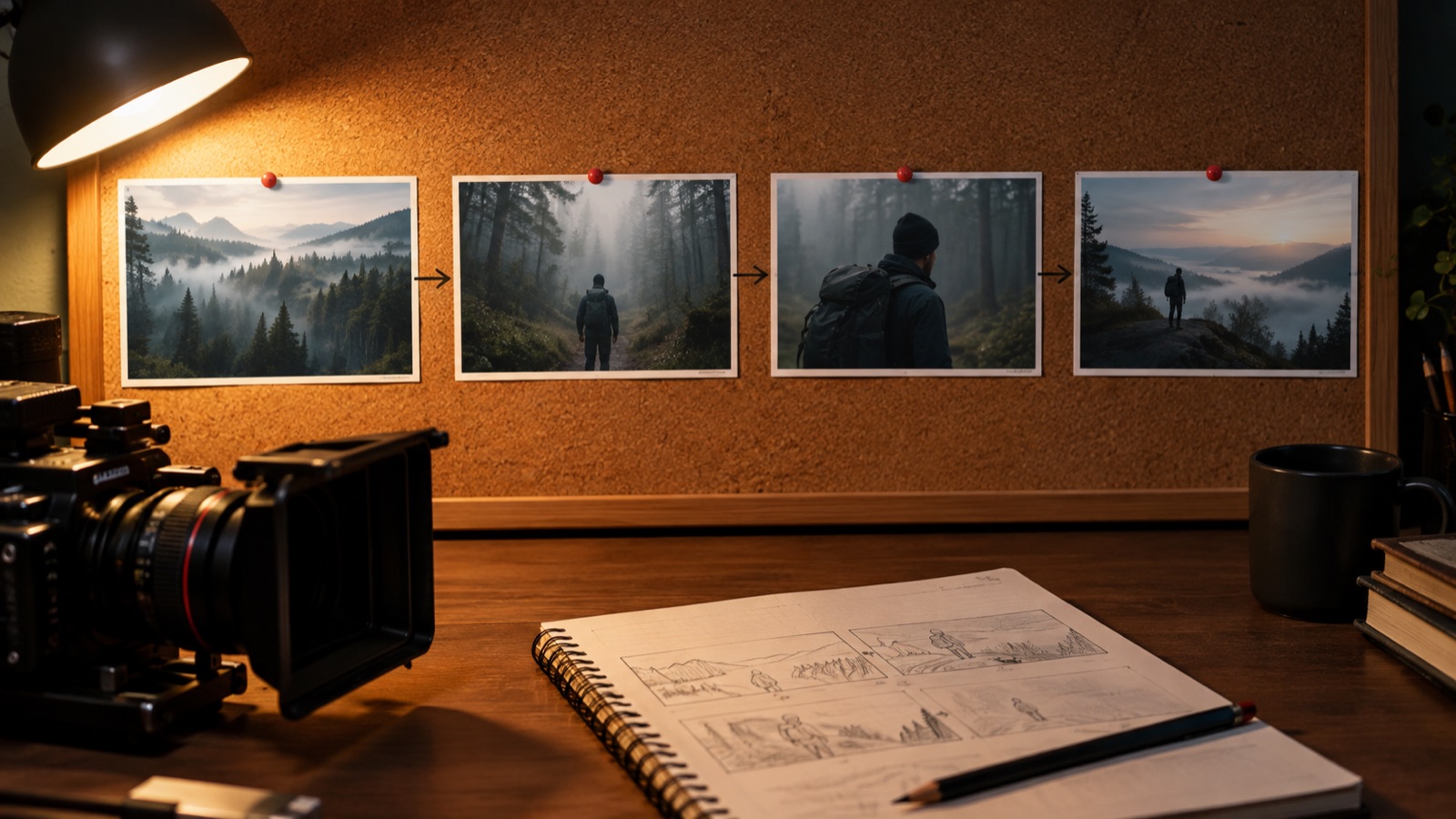
Create a cinematic keyframe for an image-to-video shot: a lone hiker on a misty forest ridge at dawn, wide 16:9 composition, soft volumetric light, realistic atmosphere, detailed foreground ferns. No text or watermark.Build a one-shot prompt
Pick one action and one camera move. Keeping the shot simple is the fastest way to avoid identity drift and sudden scene changes.
Use the provided image as the exact visual reference and starting composition. Create a continuous 5-second cinematic shot in a 16:9 frame. Keep the subject’s recognizable face, age, skin tone, costume, hairstyle and body proportions consistent with the reference. Subject action: turns their head slowly toward the camera. Camera: slow push-in, smooth and physically plausible. Lighting: soft dawn light with volumetric mist. Keep the background consistent with the reference. Add only subtle environmental motion such as drifting fog, moving leaves or a gentle light change. Maintain stable anatomy, realistic motion and consistent lighting for the whole shot. Do not change the person’s identity, replace the costume, add characters, cut to a new scene or introduce text and watermarks.This builder is free. It writes text only; paste the prompt into your video model. EzCreate does not publicly render video on this page today.
Try it in the real editor
Describe your idea, apply the preset and press Generate. The editor shows the current credit cost before anything runs. Results vary by source photo and model; check the face, hands and fine edges before you use the output.
What it does well, and where it stops
- EzCreate does not publicly render video on this page today. The page builds prompts and still keyframes.
- Video model behavior, pricing and duration limits vary by provider. Check the provider’s current documentation.
- Do not animate a real person’s photo without permission, and do not create deceptive footage.
Who it is for
Short social clips
Turn a strong still into a five-second loop with a gentle camera move and one action.
Storyboard previsualization
Test the composition and lighting of a shot before a full production.
Product teasers
Animate a product keyframe with a slow push-in and a controlled light change.
Frequently asked questions
- Does EzCreate generate video on this page?
- No. This page builds the still keyframe and a copyable prompt. Public video rendering is not exposed here today; use your own video model account for the final clip.
- Which video models does the prompt work with?
- It is written for image-to-video models that accept natural-language prompts, such as Seedance, Kling, Wan or Runway. Each provider has its own syntax and duration limits, so adjust the details.
- How long should the clip be?
- Start with five seconds and one simple action. Longer clips and complex motion are harder to keep consistent, especially around faces and hands.
- How do I stop the face from changing?
- Say “preserve the person’s exact facial identity, age, skin tone and hairstyle” and keep the motion small. A slow head turn or a gentle push-in is safer than a full-body action.
- Can I use the prompt to edit an existing video?
- Some providers offer video-to-video or reference-to-video editing. This builder writes an image-to-video brief; for an edit, describe what should change and what must stay the same, then check your provider’s input format and duration limit.
- Is the prompt builder free?
- Yes. Building and copying the prompt is free. Generating the keyframe uses the same image credits as any other edit; sign in to claim the daily preview credits, and larger runs use purchased credits.
Try the editor before you buy credits
Describe your idea and run the preset in the editor above. Sign in to claim the daily preview credits; larger runs, downloads, 2K or 4K output and saved history use purchased credits.
Related tools and guides
AI Image Extender
Add room around a tight photo for a banner, print or social crop.
Change Photo Background
Replace a busy background with a studio, street or solid-color scene.
AI Headshot Generator
Turn a clear selfie into a professional portrait for work profiles.
All AI image tools
Compare every focused tool and choose the one that matches the job.