
EzCreate · AI image tools
Colorize a Black and White Photo
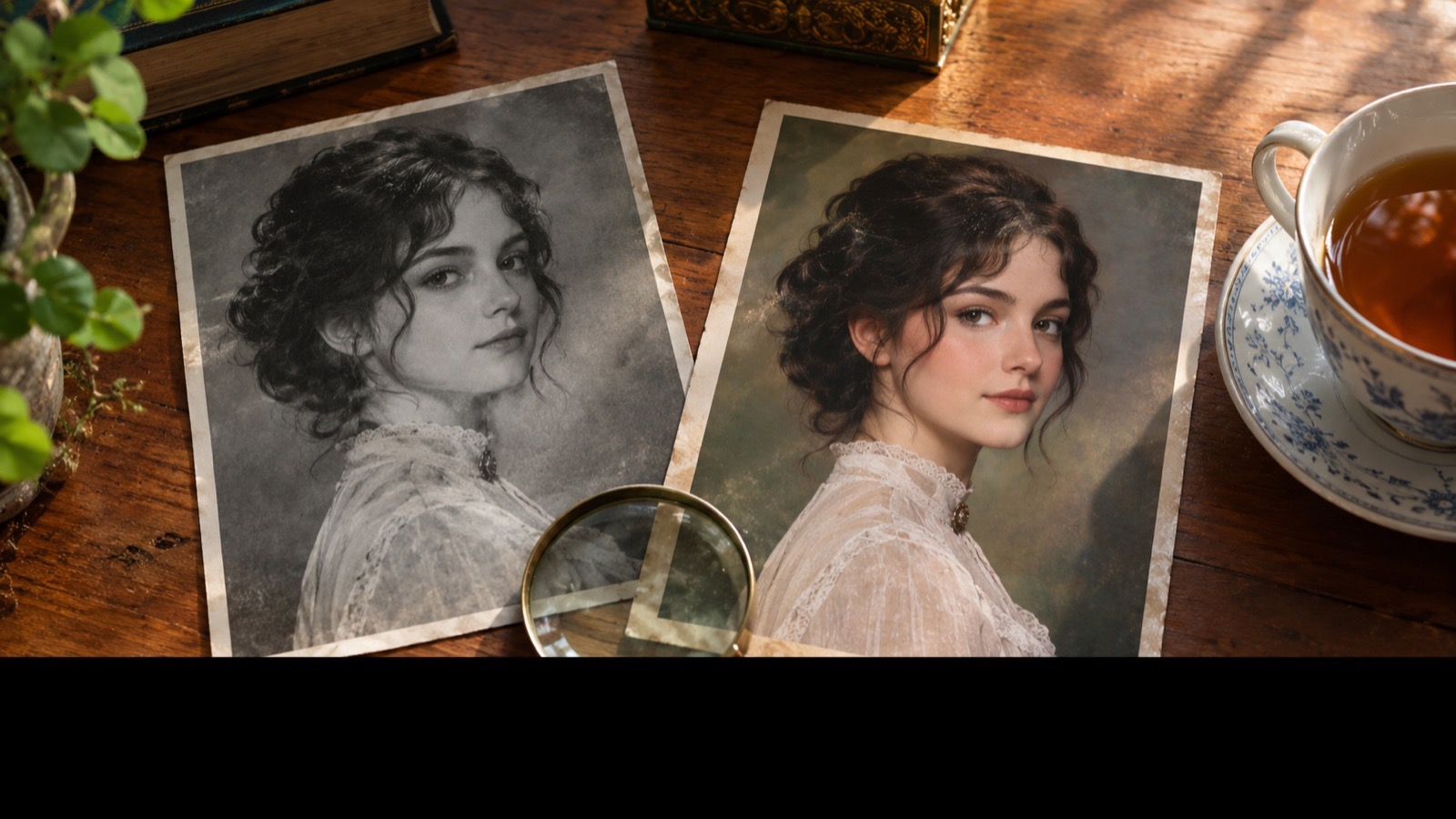
Colorizing a black and white photograph is part restoration and part storytelling. The model reads shapes, textures and tonal values, then assigns colors that are statistically plausible. It often does a beautiful job on skin, sky and foliage. It can also put a blue dress on a green one, or give a dark coat a color that never existed.
- AI colorization guesses. It can get skin tone, fabric and scenery plausible, but it cannot know the true color of a dress or a wall.
- Use the original black and white file as the archive copy and label the color version as a colorized interpretation.
- For family history, research period clothing and ask relatives before presenting a guess as fact.
You can open the editor for free and start with a photo or a prompt. Sign in to claim the daily preview credits; downloads and higher resolution use purchased credits.
Quick answer
The result is best treated as an interpretation, not a recovered fact. The prompt below asks for muted, period-appropriate color and protects the original composition. If you know the real colors, describe them explicitly. If you do not, say so in the caption and keep the original scan alongside the colorized version.
What this tool does
Adds plausible color
Assigns natural skin tones and period-appropriate colors while keeping the original grain and tonal structure.
Preserves the face
A strict prompt protects identity and expression, so the person does not become a different relative.
Keeps the archive honest
The original black and white file stays untouched; the color version is a separate, labeled interpretation.
How to use the Colorize a Black and White Photo
1. Start with a clean scan
Use the highest-resolution black and white scan you have. Repair major damage first, then colorize the cleaned file.
2. Add known colors
If you know the uniform, dress or room color, put it in the prompt. Specific, plausible details beat a generic “make it colorful”.
3. Review skin and fabric
Check faces, hands and large fabric areas first. Regenerate if the skin tone looks unnatural or the clothing color is clearly wrong.
Prompt recipe
This is the preset behind the example. Apply it to the editor below, or copy it into your own model. Change one detail at a time so you can tell what helped.
Colorize this black-and-white photograph with historically plausible, natural colors. Preserve the original composition, faces, clothing, textures and grain. Use muted, realistic skin tones and period-appropriate colors. Do not change the person’s identity, age or expression. Do not add or remove objects. No text or watermark.Try it in the real editor
Upload a photo, apply the preset and press Generate. The editor shows the current credit cost before anything runs. Results vary by source photo and model; check the face, hands and fine edges before you use the output.
What it does well, and where it stops
- Colors are guesses unless you supply historical evidence. Do not present them as certain.
- Skin tone accuracy is limited, especially in very dark or very light scans.
- Colorization is not restoration. Repair cracks and fading first, then colorize.
Who it is for
Family history
Create a warm color version for a reunion slideshow while keeping the original scan as the record.
Memorial portraits
Prepare a gentle color portrait for a service or a framed keepsake.
Creative projects
Use color as an artistic interpretation for posters, books or exhibitions, with a clear caption.
Frequently asked questions
- How accurate is AI photo colorization?
- It is plausible, not factual. The model infers color from tone and context, so a dress, wall or uniform can be wrong. Supply known colors and label the result as an interpretation.
- Can I correct a wrong color?
- Yes. Describe the correct color in the prompt and regenerate, or correct the result in a photo editor. Start from the original scan each time so errors do not compound.
- Does colorization work on damaged photos?
- It works best after basic repair. Use the old photo restorer first for cracks and fading, then colorize the cleaned file.
- Will it change the person’s face?
- It can, especially in low-resolution areas. Compare the result with the original and regenerate if the likeness drifts.
- Is it free to try?
- You can open the editor and upload a photo for free. Sign in to claim the daily preview credits; downloads and higher resolution use purchased credits.
Try the editor before you buy credits
Upload one photo and run the preset in the editor above. Sign in to claim the daily preview credits; larger runs, downloads, 2K or 4K output and saved history use purchased credits.
Related tools and guides
Old Photo Restorer
Repair scratches, fading and small tears in a scanned family photograph.
AI Image Extender
Add room around a tight photo for a banner, print or social crop.
Remove an Object From a Photo
Erase a distraction and rebuild the background with matching texture.
How to colorize a family photo without inventing history
Read the full guide, then come back to the same editor.
All AI image tools
Compare every focused tool and choose the one that matches the job.